
Identity
ID verification, AML screening, and evidence the counterparty completed their checks.
Identity and AML Elements
Each private buyer or corporate appointee who needs checks has an evidence record on the Identity tab. One card shows session progress plus ID authenticity, address verification, and AML screening. This provides staff with a clear view of what is still outstanding before they send a link, start in person, or upload files.
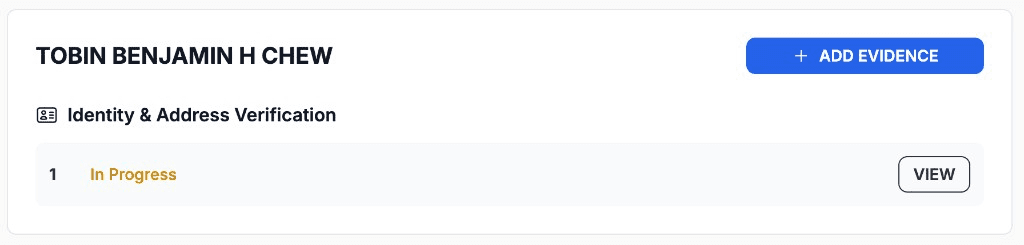
Status at a glance
Open an evidence record from the Identity tab to see the verification request for that person and whether session, document, address, and AML steps have started or completed.
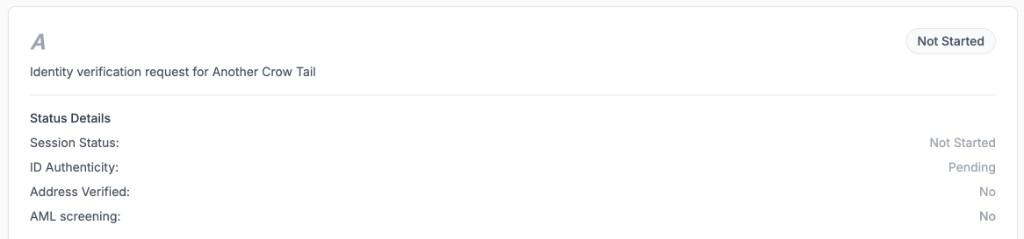
Verification request
One identity verification record per person on the sale.
Session status
Overall progress: Not Started, In Progress, or complete.
ID and address
ID authenticity and address verified as separate rows.
AML screening
AML screening on the same evidence card.
Verification request
One identity verification record per person on the sale.
Session status
Overall progress: Not Started, In Progress, or complete.
ID and address
ID authenticity and address verified as separate rows.
ID and address
ID authenticity and address verified as separate rows.
AML screening
AML screening on the same evidence card.
AML screening
AML screening on the same evidence card.
Identity checking
After the client starts the collector flow or you begin in person, the same evidence card updates in real time. Staff see session progress and which elements are still pending before address verification and AML screening can complete.
Session in progress
While checks are running, the card shows In Progress at the top. Session status reflects an active verification; ID authenticity may show Pending until document checks finish, with address and AML still outstanding.
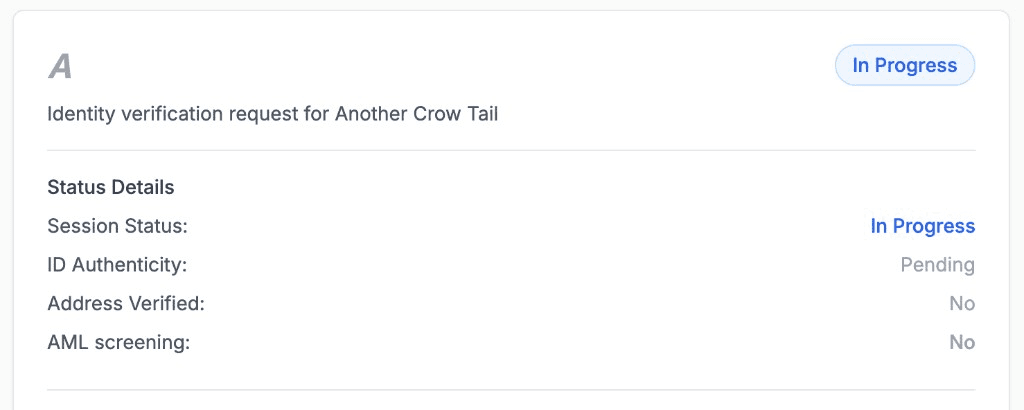
In Progress
Overall status once the client has started the session.
Session status
Session status while the collector flow is underway.
ID authenticity pending
ID authenticity can show Pending during document checks.
Address and AML
Address and AML stay outstanding until those steps run.
Session status
Session status while the collector flow is underway.
In Progress
Overall status once the client has started the session.
ID authenticity pending
ID authenticity can show Pending during document checks.
ID authenticity pending
ID authenticity can show Pending during document checks.
Address and AML
Address and AML stay outstanding until those steps run.
Address and AML
Address and AML stay outstanding until those steps run.
Request aspects from the client
Before you send a collector link or start in person, you configure which identity details are required on the evidence. The client is not asked which specific document they hold, they choose how to cover photograph, name, date of birth, and address when your settings allow more than one approach. For background on what “identity” means in UK compliance, see What is an identity? on our security pages.
Identity requirements
Edit identity requirements on the evidence to turn required elements on or off. Acceptable documents can be a single official ID that shows everything, or two documents that between them cover every required detail.
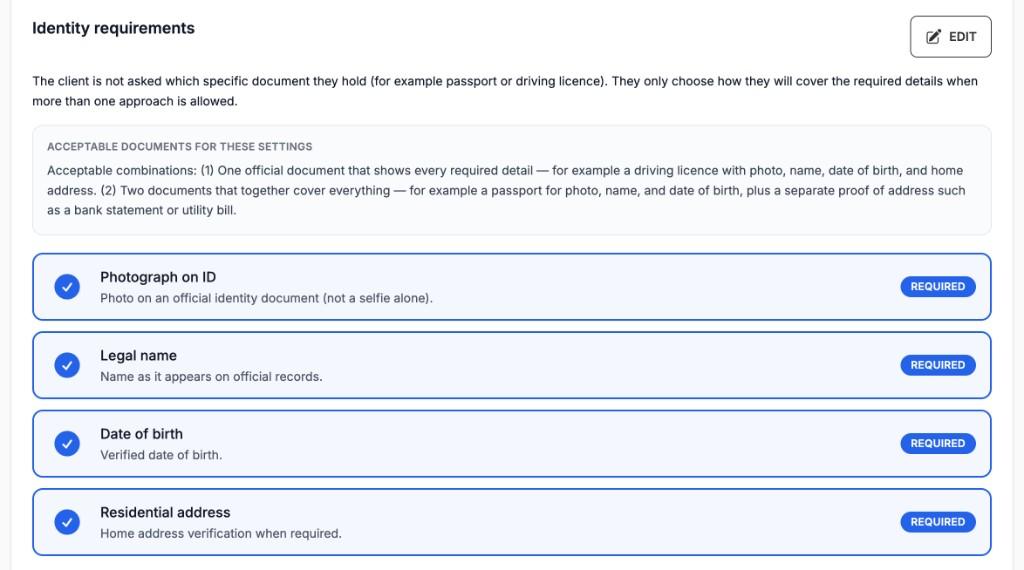
Identity requirements
Edit which elements the collector must provide.
Acceptable documents
One official ID or two documents between them.
Required elements
Each Required row must be satisfied to complete.
Residential address
Home address as its own required element.
Identity requirements
Edit which elements the collector must provide.
Identity requirements
Edit which elements the collector must provide.
Acceptable documents
One official ID or two documents between them.
Acceptable documents
One official ID or two documents between them.
Residential address
Home address as its own required element.
Required elements
Each Required row must be satisfied to complete.
Three options for collecting identity data
Once requirements are set, staff choose how to gather evidence on the same record, without duplicating work on the purchase. All three paths feed the same identity and AML elements for private buyers and unverified corporate appointees.
Choose how to collect
From the evidence record, pick Send to Customer for a remote collector flow, Start In Person Interaction when the client is with you, or Upload Files Directly when you already hold scans.
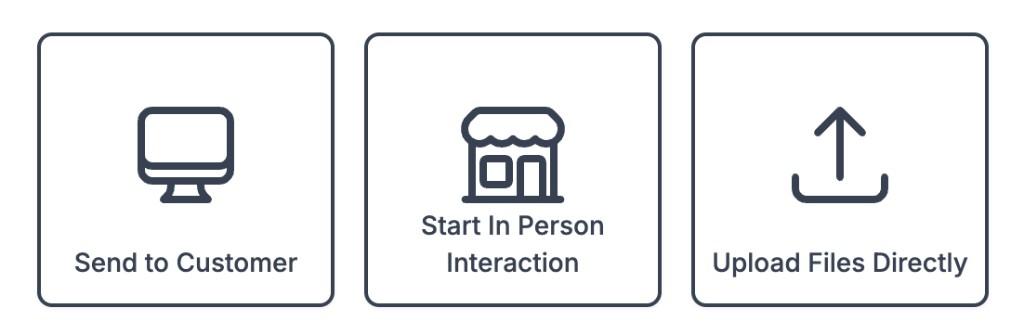
Send to Customer
Remote collector flow by link, email, or SMS.
Start In Person Interaction
Verification on a staff device at point of sale.
Upload Files Directly
Attach scans your team already holds.
Start In Person Interaction
Verification on a staff device at point of sale.
Start In Person Interaction
Verification on a staff device at point of sale.
Send to Customer
Remote collector flow by link, email, or SMS.
Upload Files Directly
Attach scans your team already holds.
Send to Customer
For additional security, the collector must enter an access code to open the session. Send the code using a different transport from the link, for example, email the verification URL and text the access code via SMS.
The first way to collect identity remotely is Send to Customer. Proofenance appreciates that you may want a personalised email or message in your own words, so the verification link is easy to copy and paste into whatever channel you use with the collector. When you send from Proofenance, emails and SMS are tracked on the evidence with delivery status; open time and location are recorded where available, and follow-up messages can be added automatically when there is no activity.
Share the verification link
From Send to Customer on the evidence record, send the URL by email or SMS from Proofenance, copy the link for your own template, or use your device share sheet. The access code is shown on the same screen for you to pass to the collector on a separate channel.
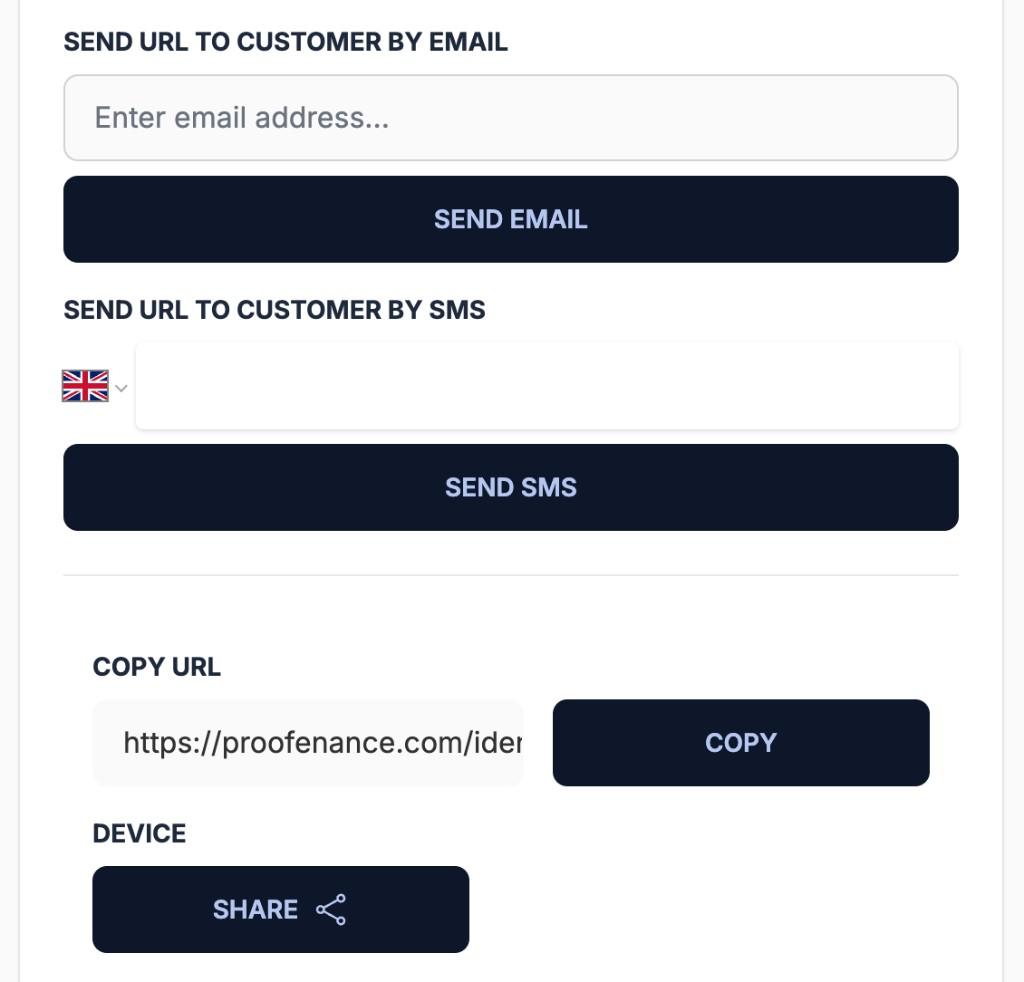
Send by email
Send the verification link from Proofenance.
Send by SMS
Text the link or access code to a mobile number.
Copy URL
Copy the URL into your own message template.
Device
Share from a phone or tablet share sheet.
Send by email
Send the verification link from Proofenance.
Send by email
Send the verification link from Proofenance.
Send by SMS
Text the link or access code to a mobile number.
Send by SMS
Text the link or access code to a mobile number.
Device
Share from a phone or tablet share sheet.
Copy URL
Copy the URL into your own message template.
Track emails and SMS
The Communications panel on the evidence lists each message sent for identity verification, email and SMS, with delivery status on the sale. Open the Communications Center for open time and location when a link was viewed, and for follow-ups Proofenance can send automatically if the collector has not engaged.
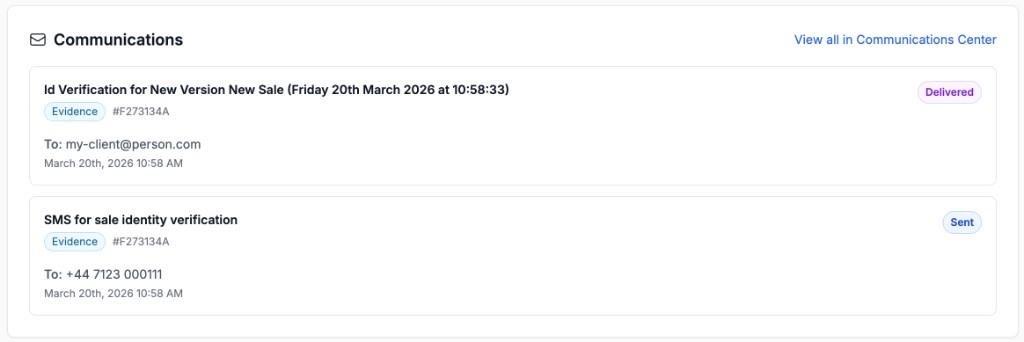
Communications
Emails and SMS for this evidence in one list.
Email status
Delivery status on each identity email.
SMS status
Sent or delivered status on SMS messages.
Opens and follow-ups
Opens and automatic follow-ups in Communications Center.
Opens and follow-ups
Opens and automatic follow-ups in Communications Center.
Communications
Emails and SMS for this evidence in one list.
Email status
Delivery status on each identity email.
Email status
Delivery status on each identity email.
SMS status
Sent or delivered status on SMS messages.
SMS status
Sent or delivered status on SMS messages.
In-person verification
When the collector is with you, choose Start In Person Interaction on the evidence record. The flow asks what they have on them: one official ID that shows every required detail, or two documents that between them cover identity and address, the same combinations described under Identity requirements on this tab.
Single document or two documents
Staff pick the path that matches what the client brought: driving licence or national ID with address on one card, or passport plus bank statement, council tax, or similar proof of address.
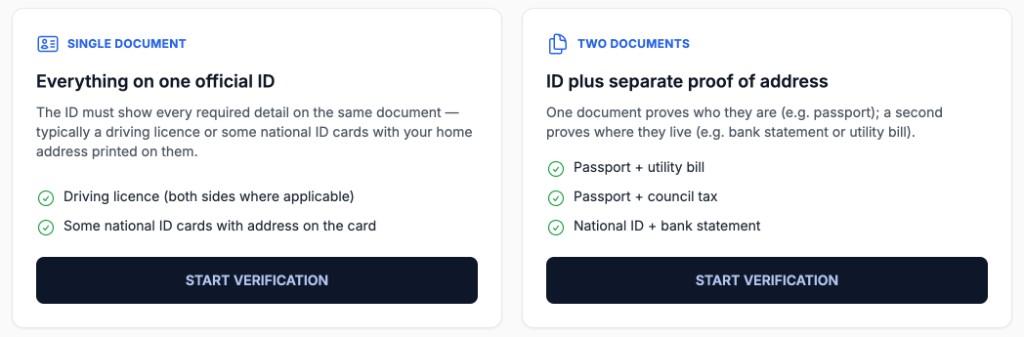
Single document
One official ID covering every required detail.
Two documents
ID plus separate proof of address.
Start verification
Launch in-person capture on your device.
Single document
One official ID covering every required detail.
Two documents
ID plus separate proof of address.
Start verification
Launch in-person capture on your device.
Start verification
Launch in-person capture on your device.
Verification result
However you collected the evidence, Send to Customer, in person, or upload, the same result view appears when checks finish. Staff see session status, ID authenticity, address verification, AML screening, and which identity requirements were satisfied on that record.
ID and AML check results
The completed evidence card shows overall status, a status breakdown, the identity requirements that applied, and shortcuts to check details, documents, and any files your team uploaded.
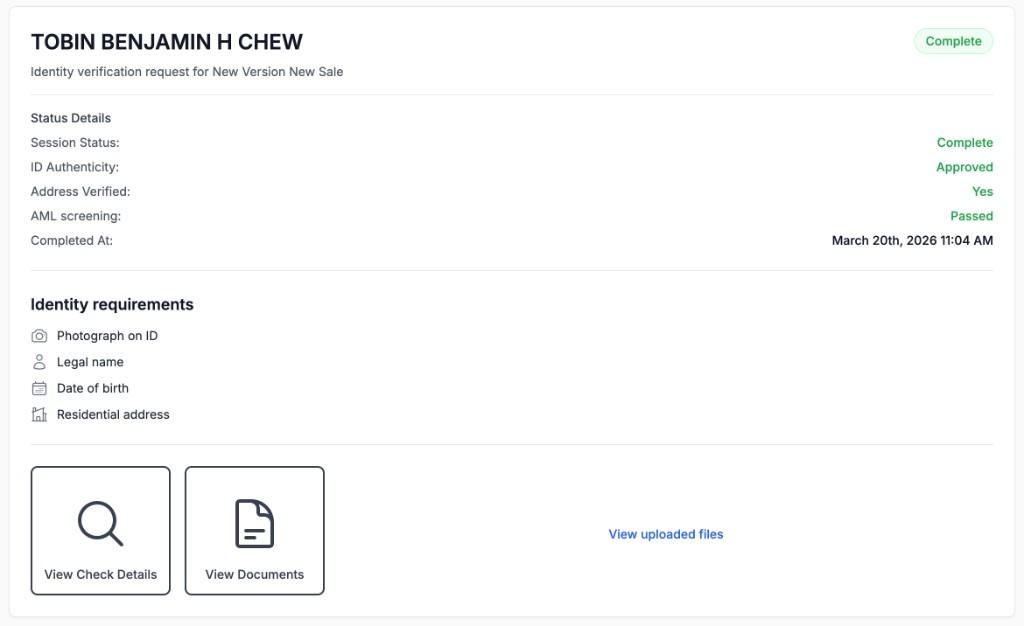
Complete
Overall status when all checks have finished.
Status details
Session, ID, address, and AML breakdown.
Identity requirements
Required elements satisfied on this record.
View check details
Full verification and screening outcome.
View documents and uploads
Captured ID images and staff uploads.
Status details
Session, ID, address, and AML breakdown.
Complete
Overall status when all checks have finished.
Identity requirements
Required elements satisfied on this record.
Identity requirements
Required elements satisfied on this record.
View documents and uploads
Captured ID images and staff uploads.
View check details
Full verification and screening outcome.
Special case: Companies House verification
At this time, anti-money laundering checks are not available for Companies House–verified directors and PSCs, we are actively working on this. To perform AML screening for a verified director today, create a separate evidence session and collect identity through Send to Customer, in person, or upload as usual.
For verified appointees and PSCs pulled from the UK Companies House register, identity can already be confirmed from Companies House before you send a collector flow or upload further evidence. Open the record to see when the public register shows identity was verified, jump straight to their director page on Companies House, and attach any other identity-related files you wish to keep on the sale.
Register-backed identity on the Identity tab
Each verified director or PSC from Companies House appears on the Identity tab with identity already confirmed from the register, plus options to add further evidence when your policy requires it.
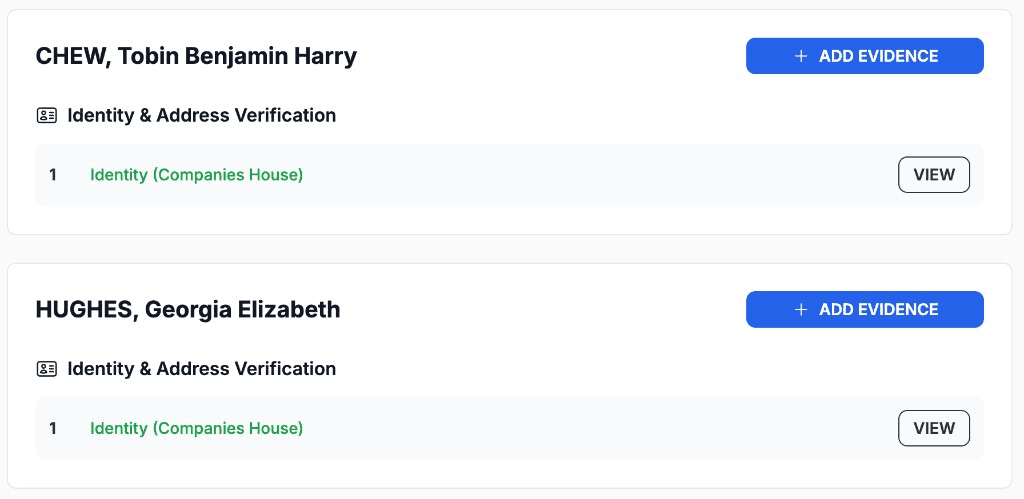
Each Person
Every person related to the sale has identity.
Add evidence
Upload or request further proof when needed.
Identity (Companies House)
Identity confirmed from Companies House data.
Each Person
Every person related to the sale has identity.
Each Person
Every person related to the sale has identity.
Add evidence
Upload or request further proof when needed.
Add evidence
Upload or request further proof when needed.
Identity (Companies House)
Identity confirmed from Companies House data.
Identity (Companies House)
Identity confirmed from Companies House data.
Companies House identity record
View opens the register-backed identity detail: verification date from Companies House, context that there was no in-product collector session, a link to the appointee’s public director page, and Upload Files Directly for any other identity-related documents you want on file.
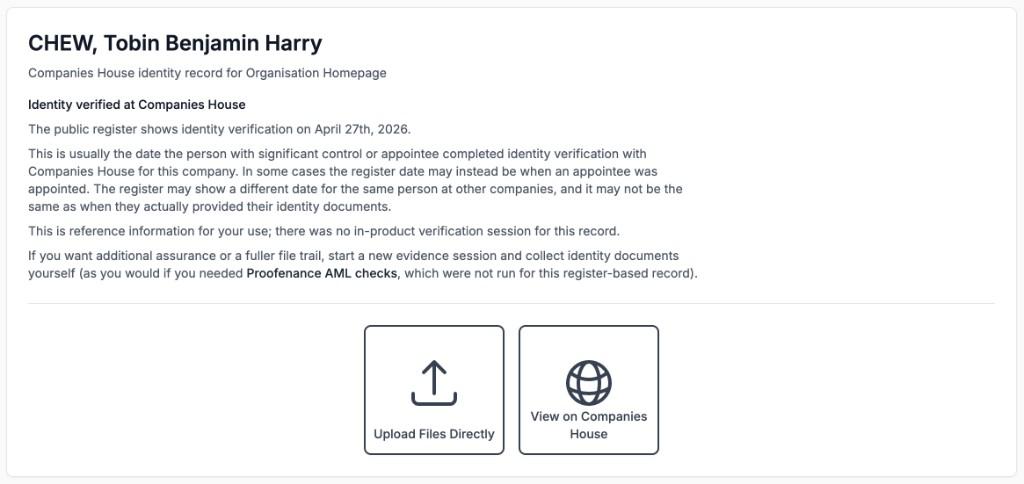
Identity Verification
Verification date from the public register.
View on Companies House
Open the appointee’s public director page.
Upload Files Directly
Attach supplementary identity files.
Identity Verification
Verification date from the public register.
Identity Verification
Verification date from the public register.
Upload Files Directly
Attach supplementary identity files.
View on Companies House
Open the appointee’s public director page.
Further reading
More on what identity means in UK compliance and how Proofenance verifies documents.